Student Report
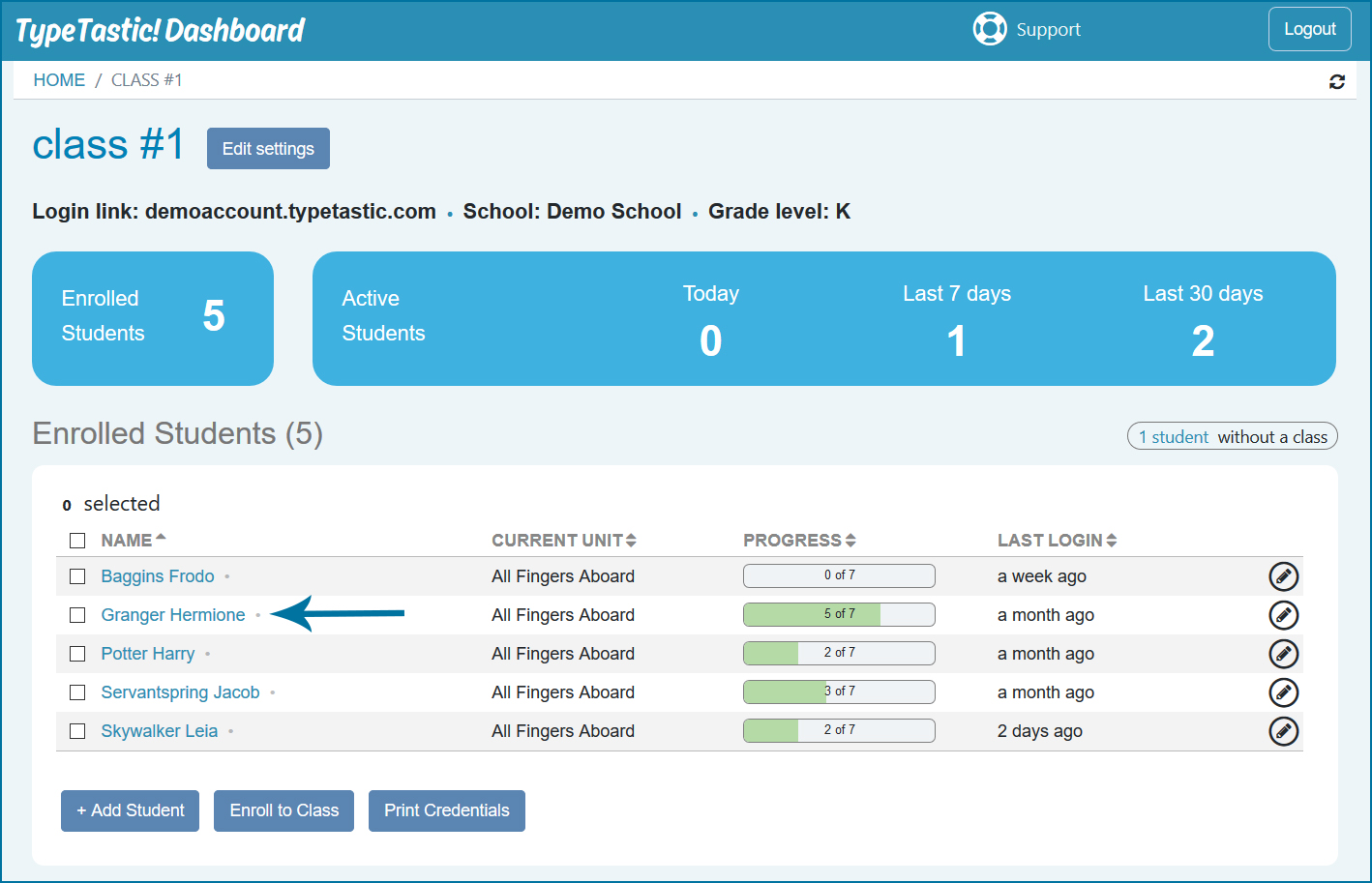
To view individual student reports:
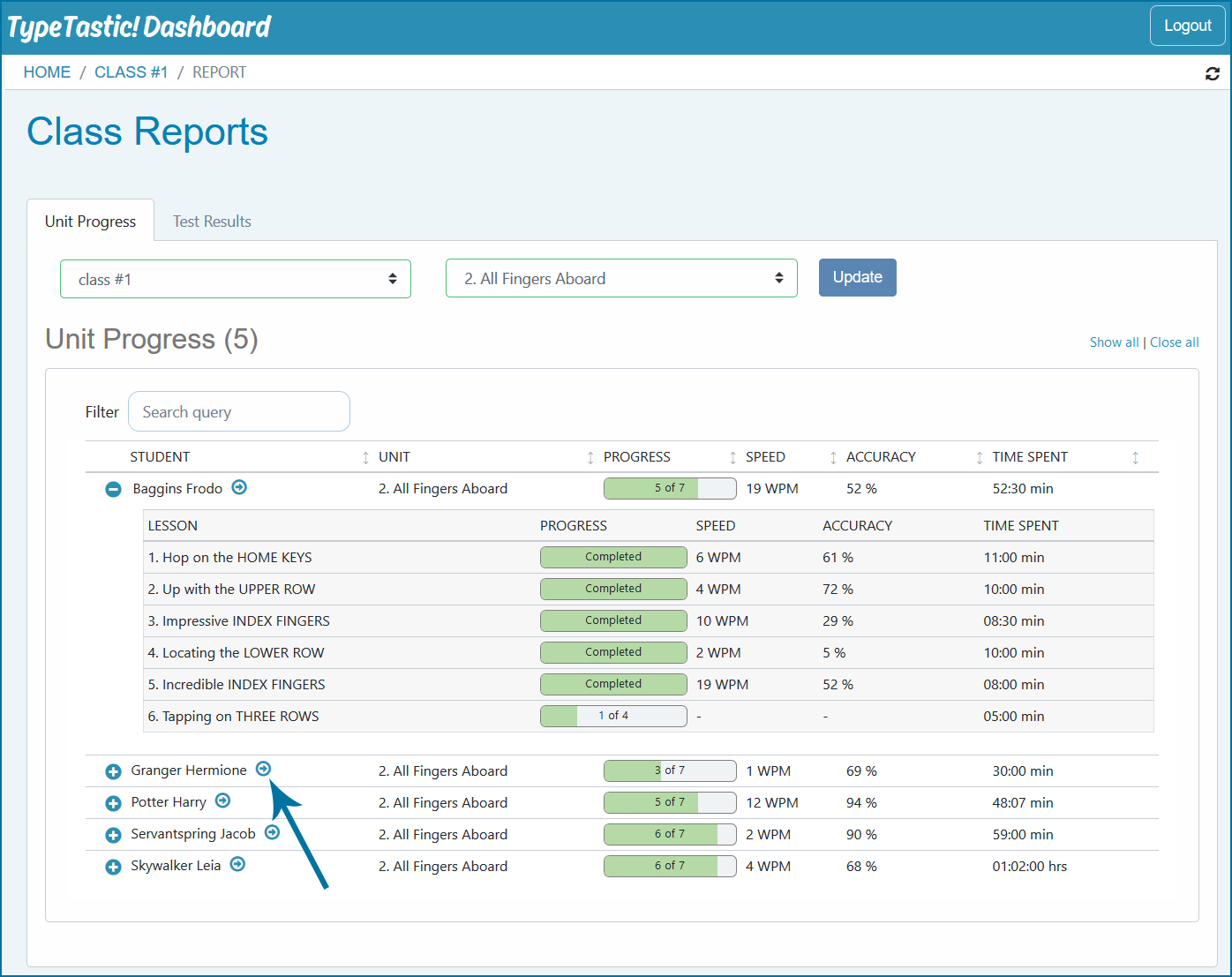
- Click on the student's name on Class page or, on Class Reports page, click on the arrow after the student’s name
View lesson progress by clicking on +, and minimize progress by clicking on -.
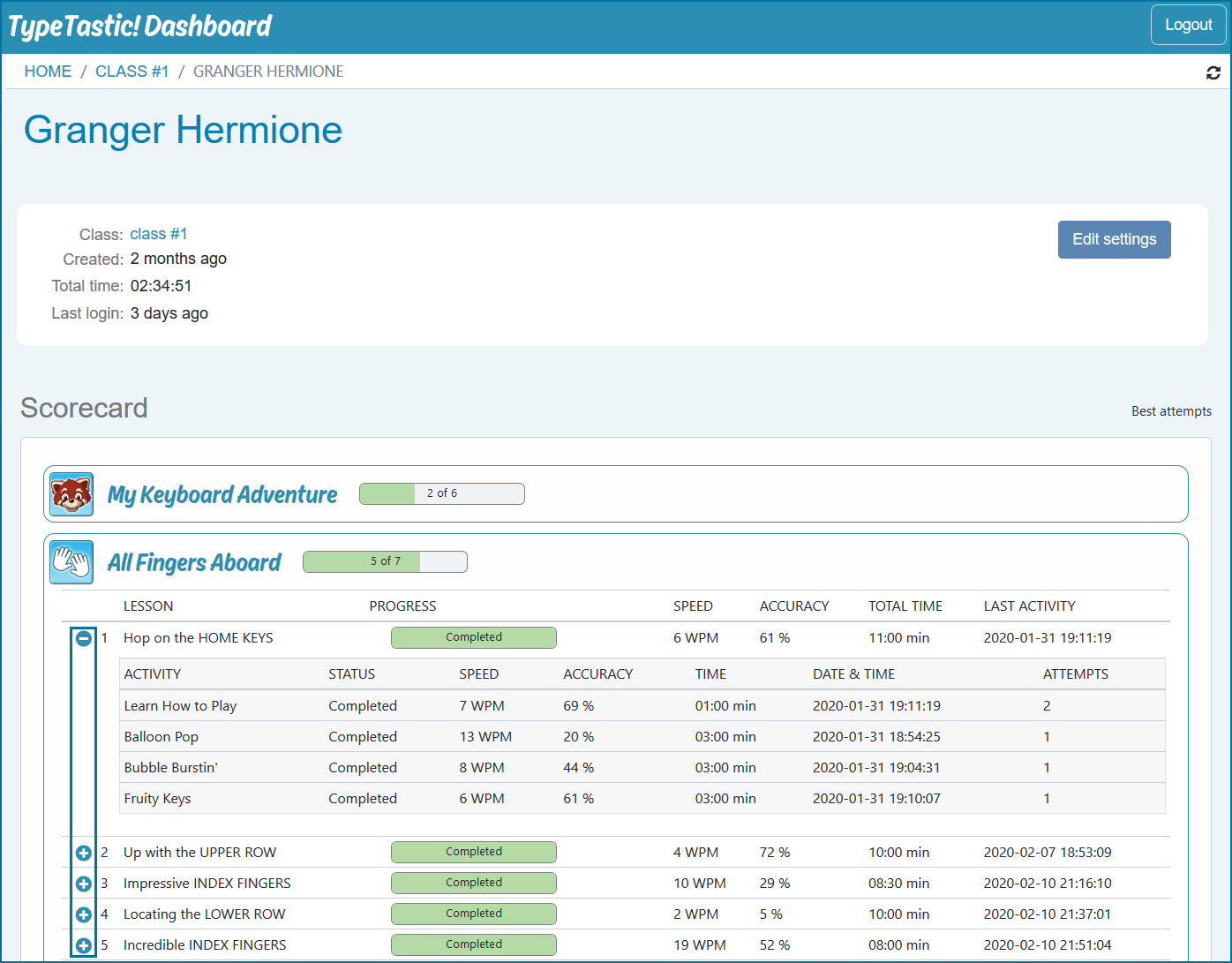
The information displayed on the student report page
Student card information
| Class | The name of the class |
| Created | How long ago the student was created |
| Total time | Total time spent studying all units |
| Last login | The last time student has logged in |
Scorecard information
| Units | The name(s) of the unit(s) student has studied |
| Lesson | The name(s) of the lesson(s) student has studied |
| Progress | The progress bar shows the number of activities a student has completed in a unit / lesson. The progress bar is entirely green when all the activities are completed. If a unit is in progress, the bar shows the number of lessons / activities completed out of the total number. |
| Speed | Typing speed with the errors calculated into the score. |
| Accuracy | Accuracy percentage is the percentage of text typed correctly |
| Total time | Shows how much time a student has spent studying a unit or a lesson |
| Last activity | A time stamp of the latest completed activity |
| Activity | The name of the activity |
| Status | If the student has typed the required duration, activity status is Completed. If the student has not typed the required duration, activity status is Interrupted. |
| Time | The duration of the activity |
| Date & Time | A time stamp of the best attempt |
| Attempts | A number of times student has completed the activity |