Import Classes
Classes are imported next as they need to be in TypeTastic before importing students so that TypeTastic can match students to classes automatically.
To import classes to your account, prepare a CSV file with these columns:
|
Column name |
Required / optional |
Description |
|
school_name |
Required Name or external id needs to match the one in school upload CSV or manually created |
Name of the school |
|
class_name |
Required |
Name of the class |
|
grade |
Required |
Accepted values: 1-10 = Grades 11 = High school Other (if a grade is not available) * grade level value are case sensitive, make sure to have capital K and capitalized Other |
|
teacher |
Optional Full name or external id needs to match the one in teacher upload CSV |
Name or ID of the owner of the class (primary teacher) Must be an exact match of last_name + ‘ ‘ + first_name, e.g. Smith John Alternatively, it can be an exact match to teacher external_id that you have used in the CSV file to import teachers and school administrators. |
|
external_id |
Optional If empty, system id can’t be used to match students to classes. |
System id of the class that can be used instead of exact class name when matching students to classes. Only use if you have downloaded your CSV roster data from SIS and matching by class name is not feasible. |
Classes without owners
If you have classes without an owner in your file, we recommend using a workaround and assigning all such classes to a District or School Administrator who can then move classes to teachers when needed.
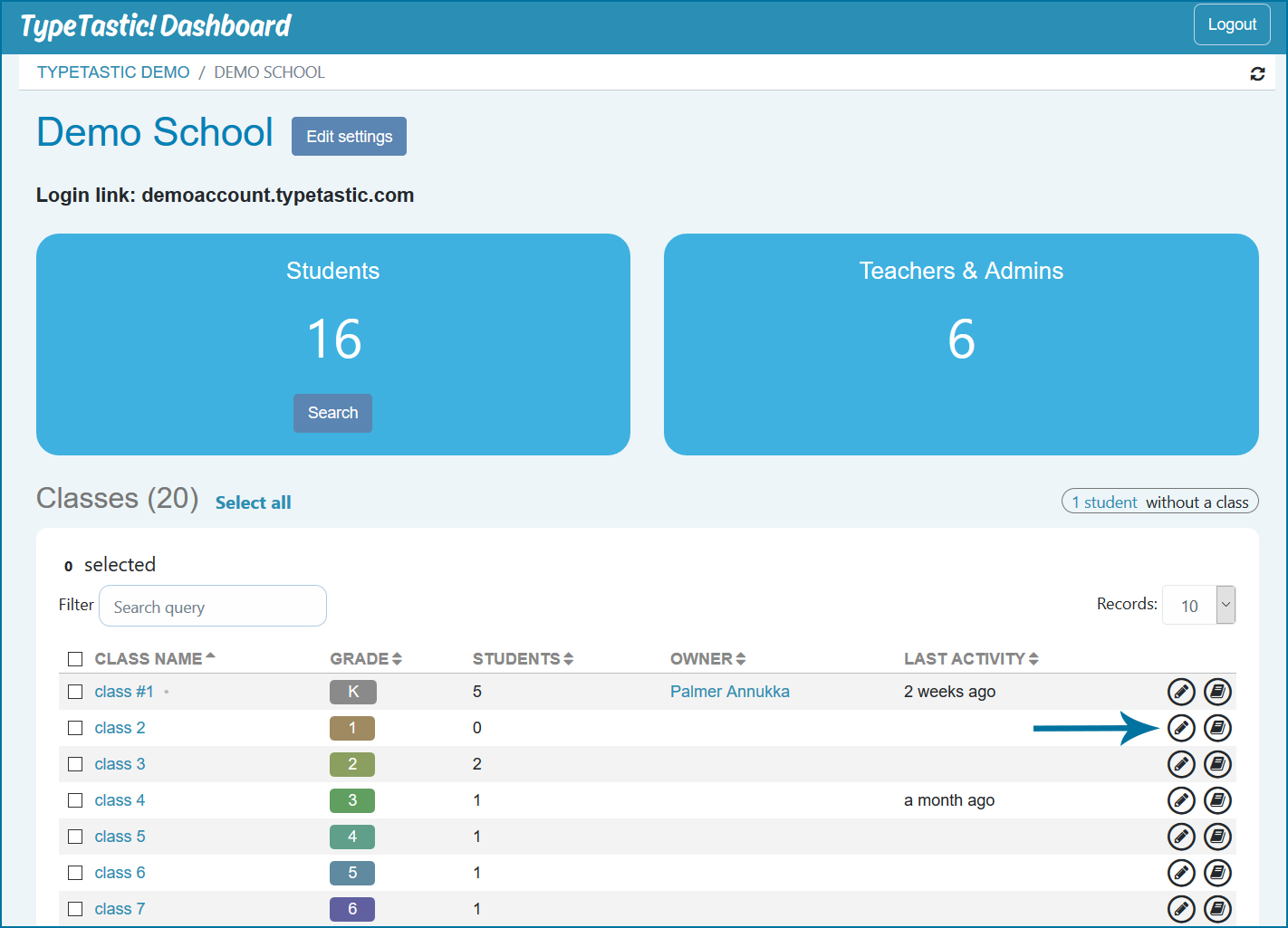
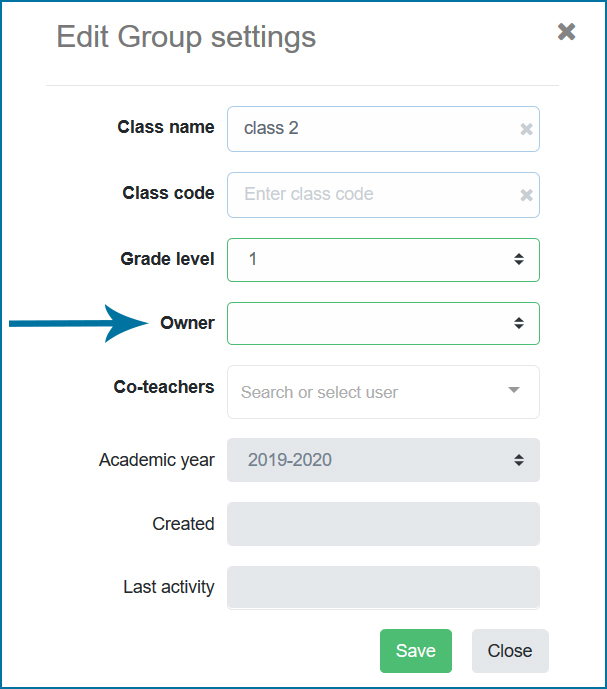
If that is not possible, you can choose to import classes without owners. In that case, the school or district administrator needs to set owners manually for each class by clicking Edit class icon on the School page.