Sharing Rules & Initial Synchronization
Usually, it is easiest to work out the rules when you have a team of people from your district discussing the sharing; it would be good to include your Clever integration specialist, curriculum/subject matter expert and SIS administrator in the team.
NOTE!
You may also want to consider the School Site Sharing option in Clever that allows School Tech Leads to create the sharing rules for their school. This can be very useful if schools are on-boarding at different times or if district-level sharing rules are difficult to create and maintain.
When creating your sharing rules, an important point to consider is to make sure that the primary teachers of the classes using TypeTastic have access to their classes and students. If anyone else needs access, you can add them as co-teachers to the class (see our article about Assigning Co-Teachers). You need to ask yourself questions like:
- How will this resource be used in our district? How is typing/keyboarding taught in our district?
- In what courses will TypeTastic resources be used? Which grades and classes are taking typing/keyboarding?
- Who is or who are the primary teachers? Homeroom teachers or subject-specific teachers? Will they need school-wide access to classes in TypeTastic? Can we give them a role in Clever that meets the need?
- Who else needs access to reporting? Can we set them as co-teachers to these classes in our SIS or in Clever settings?
We recommend that you create a custom section sharing rule for your district to avoid over-sharing data which can lead to incorrect rostering in TypeTastic or is a student privacy concern. The simplest way to do so is to “Share by Rules” in Clever.
You can create a sharing rule by following these steps:
Step 1:
Access the Sharing Permissions page for TypeTastic. To do this, log in to your Clever account and click the icon for the name of the app in the sidebar. From the 'Data Sharing' tab, click ‘Share by Rules’
Step 2:
Select the type of rule you want to create. You can build off one of the pre-existing templates or create your own. We recommend choosing “Custom share by section”, as it will allow you to create your own rule that can apply specifically to classes shared with TypeTastic.
Step 3:
Create your rule. You can share classes with certain course names or numbers, grades, subjects or schools.
IMPORTANT!
Your rule needs to be limited so that each student will only be associated with one section. This because if we allowed students to belong to many classes, their curriculum settings could vary from one class/teacher to another which would create a lot of confusion. If a student is associated with more than one section, TypeTastic will assign them to the first one which may not be correct.
When using TypeTastic in the lower grades and the homeroom teacher teaches typing, we recommend sharing by homeroom as that usually results in one student-one section sharing.
If you have a dedicated teacher who teaches typing to all classes in a school, it can be best to share by specific course or section name where this teacher is the primary teacher.
Or, if homeroom sharing is good but you have a teacher or teachers who need school-wide access in TypeTastic, you can give them a new role in Clever (Computer Lab Manager, for example) so that in TypeTastic they have access to all classes in their school.
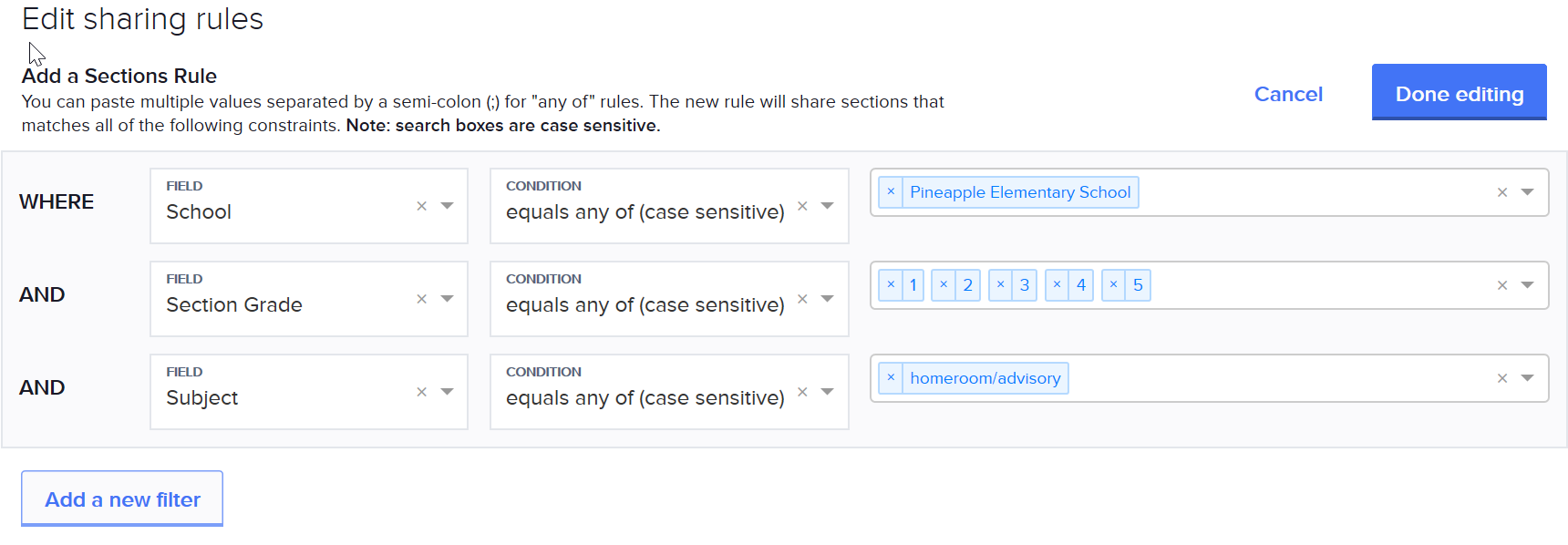
Here’s an example rule: I want to share all 1st or 2nd-grade classes in Pineapple where the name of the class contains the word “Homeroom”.
You should also include staff members who are not in the student/teacher roster so that your district and school administrators have access to TypeTastic. If non-teaching staff is not uploaded to Clever, here are the instructions on how to do that: How do I add non-teaching staff or school admins to Clever?
You can find out more about setting up sharing rules in this Clever Help Center article:
How do I share by rules?
Clever offers many ways to share data and assign well-working roles to your teachers and staff, and Clever’s support team can help you do that. Contact Clever Support by email or you may also have their support number: https://support.clever.com/hc/en-us
Once you've shared data with TypeTastic, you'll need to work with us to do your initial sync. Your on-boarding contact person shall guide you through this process. If you don't hear from us, email typetastic@typingmaster.com with the following information and a member of TypeTastic’s support team will help.
- The name of your district
- The date that you want to start syncing
Step 4:
Once your data sharing rules are set, let us know and we will run the initial synchronization for you. When it has completed, we will let you know, and you can check that the data is shared correctly.
If data is not correct, adjust your data sharing rules and contact us to re-sync the data.
Step 5:
When data has been synced correctly, we will launch Clever for you and teachers and students can start using TypeTastic. We recommend using Clever’s Notify teachers emailing tool to let the teachers know that the resource is ready.