Lesson Report
To view lesson reports:
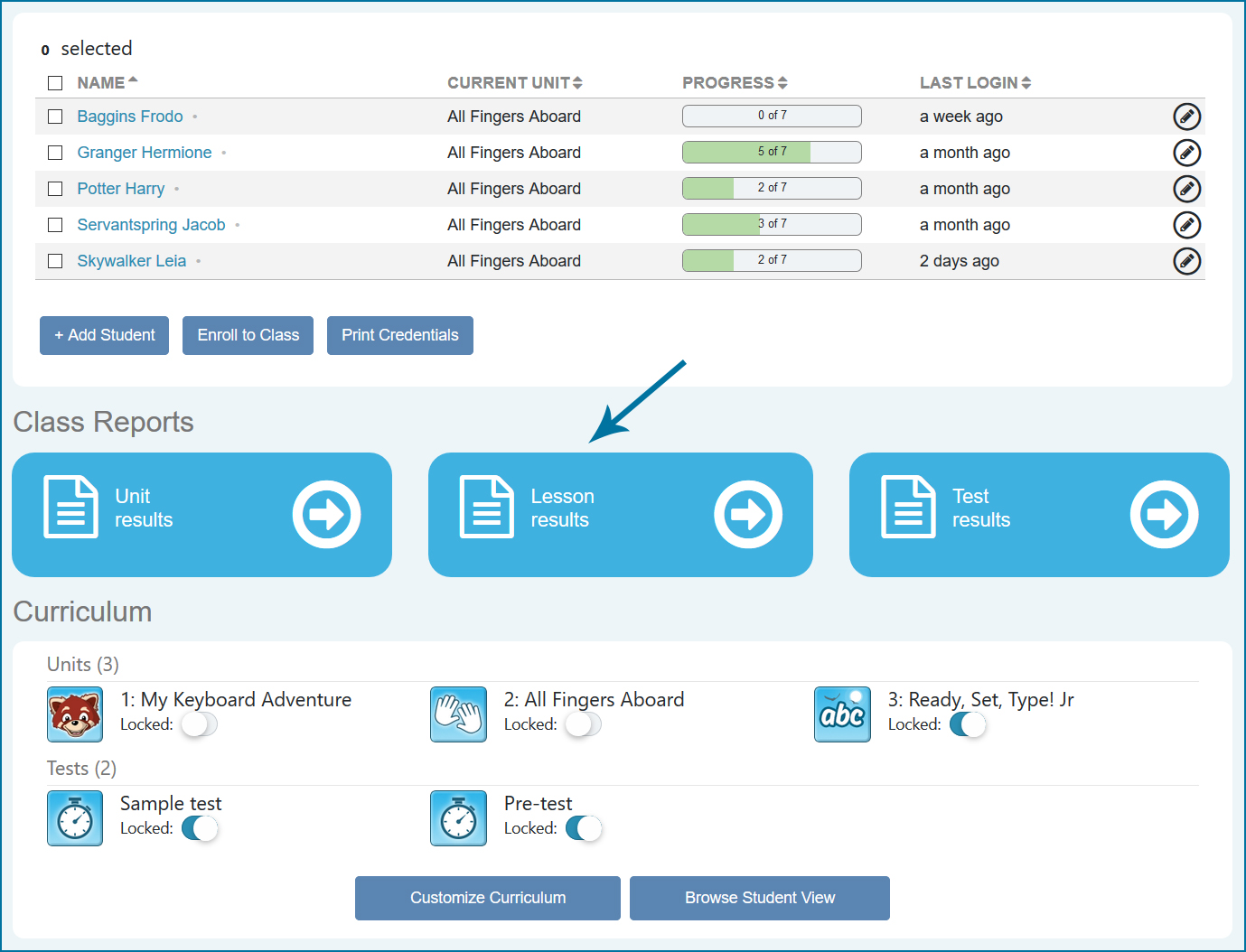
- Click Lesson results on your TypeTastic home page, below your list of students
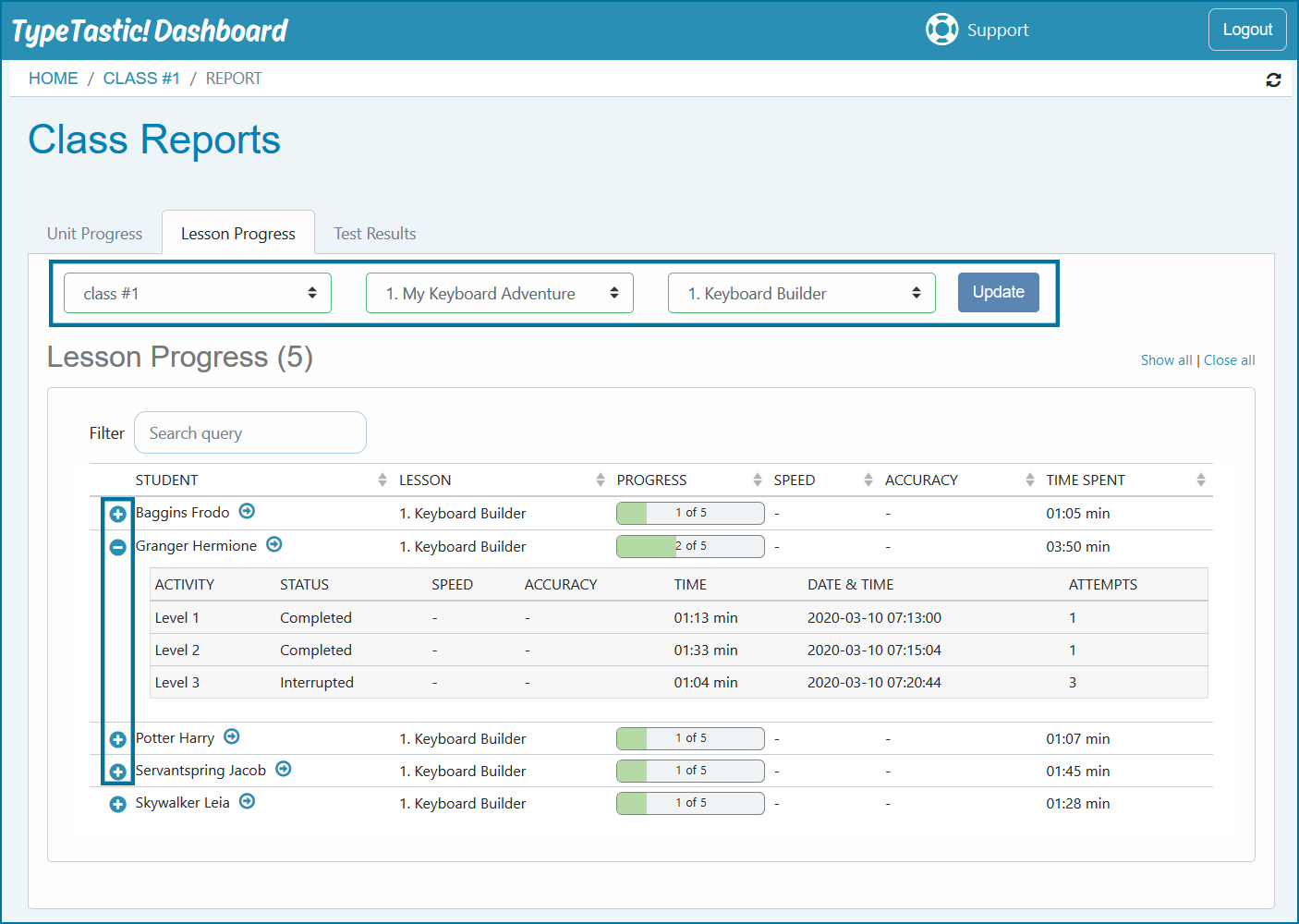
- Select Class, Unit and Lesson from the dropdown menus and click Update to view the report
View lesson progress by clicking on +, and minimize progress by clicking on -.
TIP!
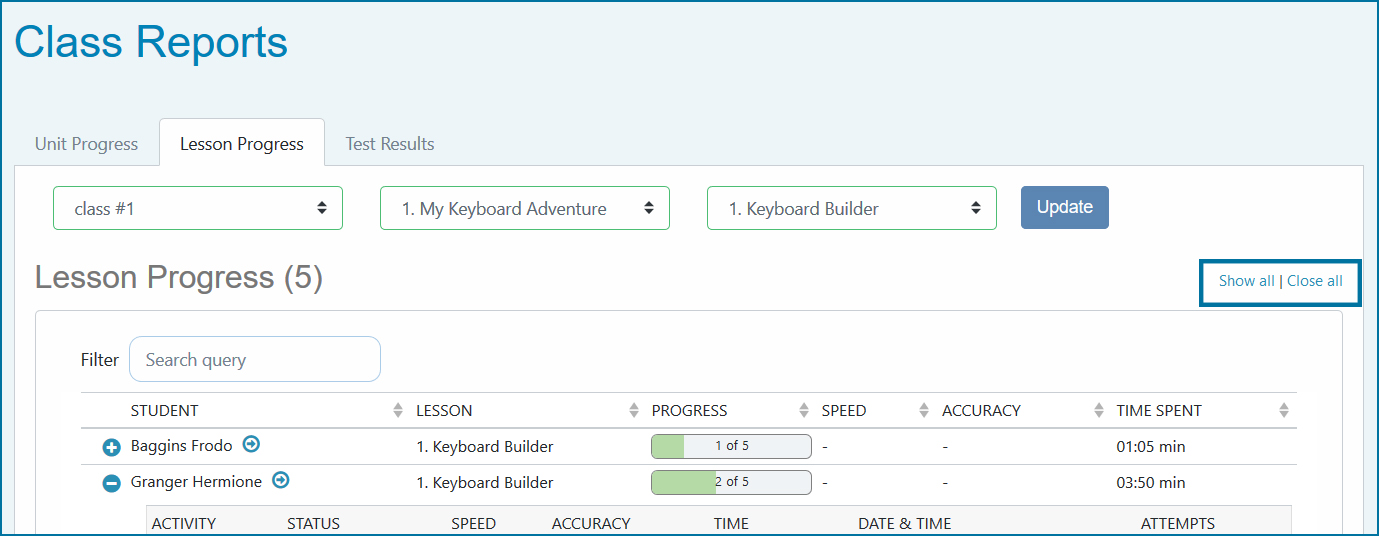
Instead of clicking on + for each student, click Show all to display all scores. Click Close all to minimize the scores.
The information displayed on the lesson report
| Student | The name of the student |
| Unit | The name of the selected unit |
| Lesson | The name(s) of the lesson(s) student has studied |
| Progress | The progress bar shows the number of activities a student has completed in a lesson. The progress bar is entirely green when all the activities are completed. |
| Time Spent | Shows how much time a student has spent studying a lesson |
| Activity | The name of the activity |
| Status | If the student has typed the required duration, activity status is Completed. If the student has not typed the required duration, activity status is Interrupted. |
| Speed | Typing speed with the errors calculated into the score |
| Accuracy | Accuracy percentage is the percentage of text typed correctly |
| Time |
The duration of the activity |
| Date & Time | A time stamp of the best attempt |
| Attempts | A number of times student has completed the activity |