Google Classroom
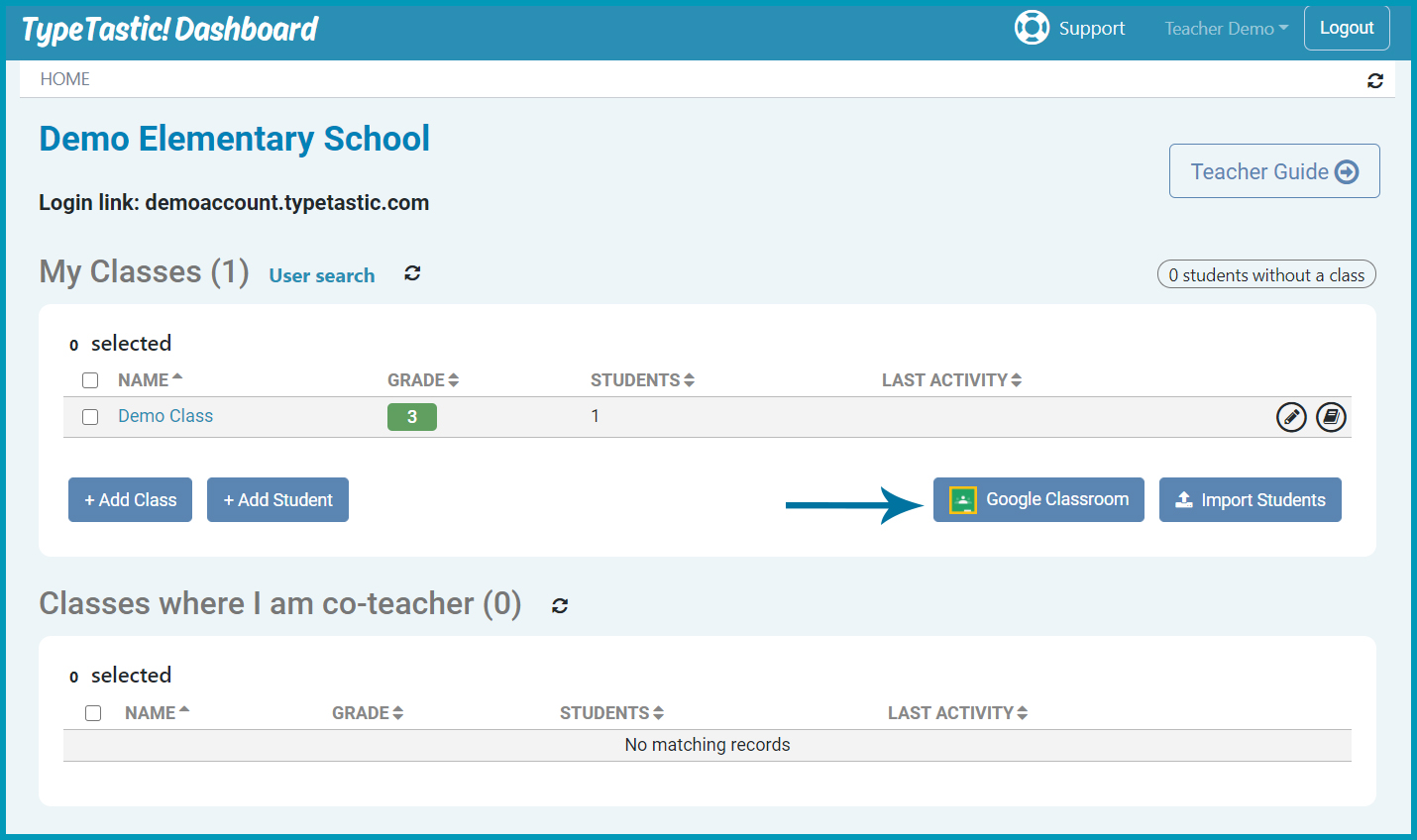
When you roster from Google Classroom you can create student accounts and enroll students in your classes with just a couple of clicks:
- Click on the Google Classroom button in TypeTastic.
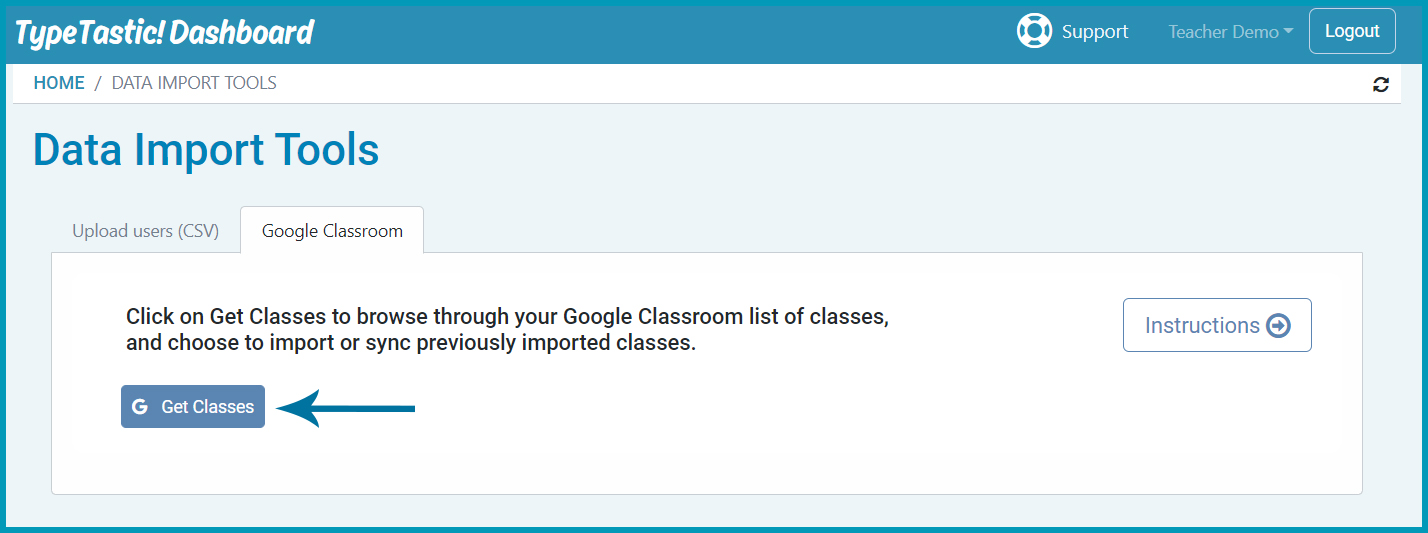
- Click on Get Classes and log in to your Google account.
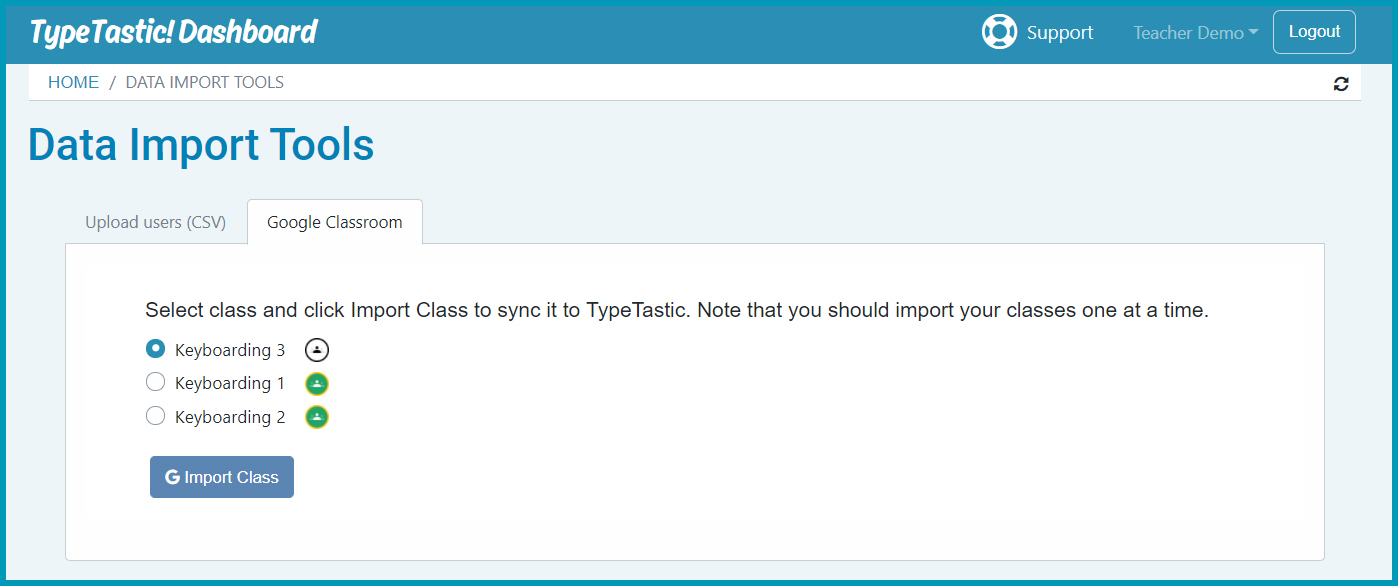
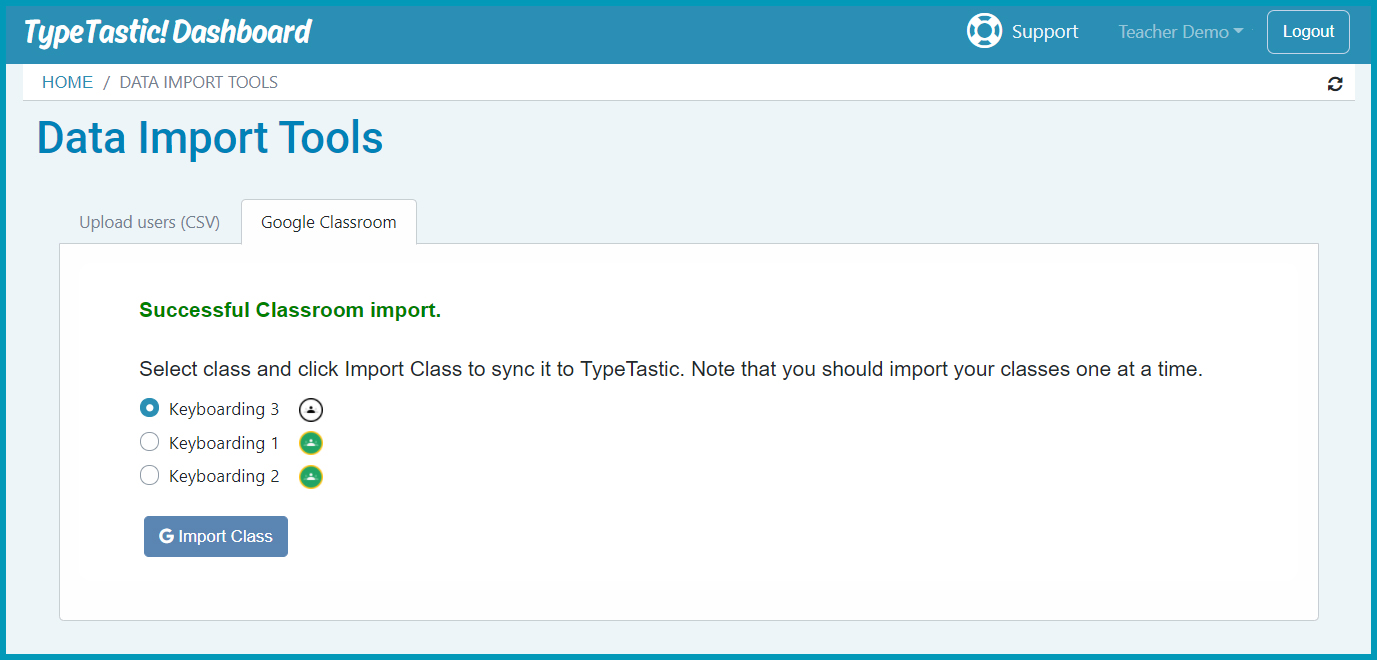
- Select a class and click on Import Class to start syncing. Note that classes can only be imported one at a time. You will get notified if there are any problems with the import.
- Repeat step 3 for each class you'd like to import.
- Click on Home in the navigation to go back to list of classes.
- Open Class Settings and select the correct grade level for the class. This way our grade-appropriate curriculum gets applied (grade is not included in Google Classroom data).
If there are changes in your Google Classroom rosters, use the same process to update your classes in TypeTastic. If there is a new student in your class, account will get created. If a student is no longer in your class, they'll get unenrolled.
- gray icon: Class with this name does not yet exist and will get created
- green icon: Class already exists in TypeTastic and will get updated if you sync it again
If you archive a class in Google Classroom, it will not longer show in the list. However, the class still exists in TypeTastic and you should to delete it from your list of classes yourself.
NOTE!
If a student already has an account using their Google email address, running classroom sync will enroll them in your class. However, sometimes a student can already be enrolled in a class that is owned by another teacher. In that case, you will get notified as in TypeTastic a student can only be enrolled in one class at a time. These students can join your class using a class code in TypeTastic (see Class settings), however, we recommend discussing this with the other teacher first. If other teacher runs a classroom resync, the student will get moved back to their class.
About class names
If class with the same name already exists in TypeTastic, your class will get a number added to the end of the name, for example, 'Keyboarding 1' could become 'Keyboarding 1 2'.
After the first sync from Google Classroom, TypeTastic will not update class names and uses the Google id to match your class, not the name. As a result, name of the class can be different in TypeTastic and in Google Classroom. If you change class name in Google, you can edit it manually in TypeTastic.
Import not working but no error message?
Sometimes the imporing can silently fail. If you run into this, please check from your IT support that connecting from third-party applications is allowed in G Suite. They may need to whitelist TypeTastic to allow reading rosters from Google Classroom.