Access Levels and Basic Navigation
There are four different user roles in TypeTastic: Account Administrator, School Administrator, Teacher and Student.
Account Administrator
Highest level user account. Has full access to all areas of TypeTastic. Set any user who needs full access to the product to this level.
- Allowed to see and manage all users including other admins and teachers as well as all schools and classes
- Control over account settings, integrations, and upload tools
- Access to view all class reports
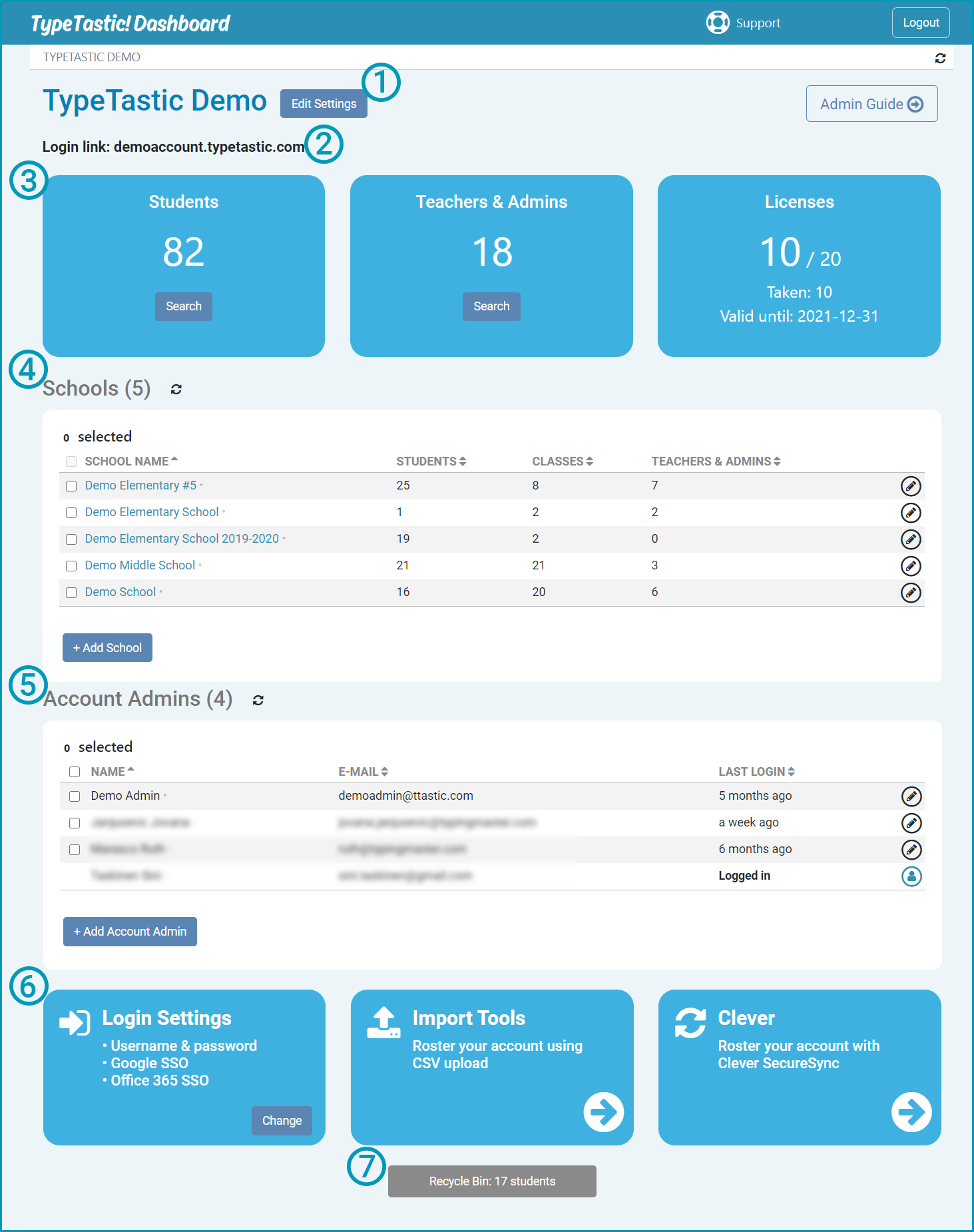
- Account Settings
- TypeTastic account login link
- TypeTastic usage cards; the total number of students in all schools, teachers & admins, and the number of licenses and expiry date
- A list of schools using TypeTastic. Clicking a school will take you to the school administrator's view (see below.)
- A list of account administrators
- Shortcuts to account Login Settings, Import Tools and Clever rostering
- Recycle Bin: all deleted student account will remain in the Recycle Bin until they're either permanently deleted or moved back to a class
Note that if your account is in single-school mode, your account admin home page does not have the list of schools, but list of classes like the school admin view.
School Administrator
Has limited access to TypeTastic Dashboard. Assign any user to this level who needs to be able to view all teachers, classes, and students in their school.
- Allowed to see and manage all teachers, classes, and students in their school
- Access to view all class reports
Multi-school admin: If the same person is an admin in more than one school, account administrators can upgrade them a multi-school administrator role. Note that multi-school role can't be given in CSV importing, but Clever SecureSync does give this role automatically based on the data that is shared via Clever. When user has a multi-school role, the page title (school name) is a dropdown selector.
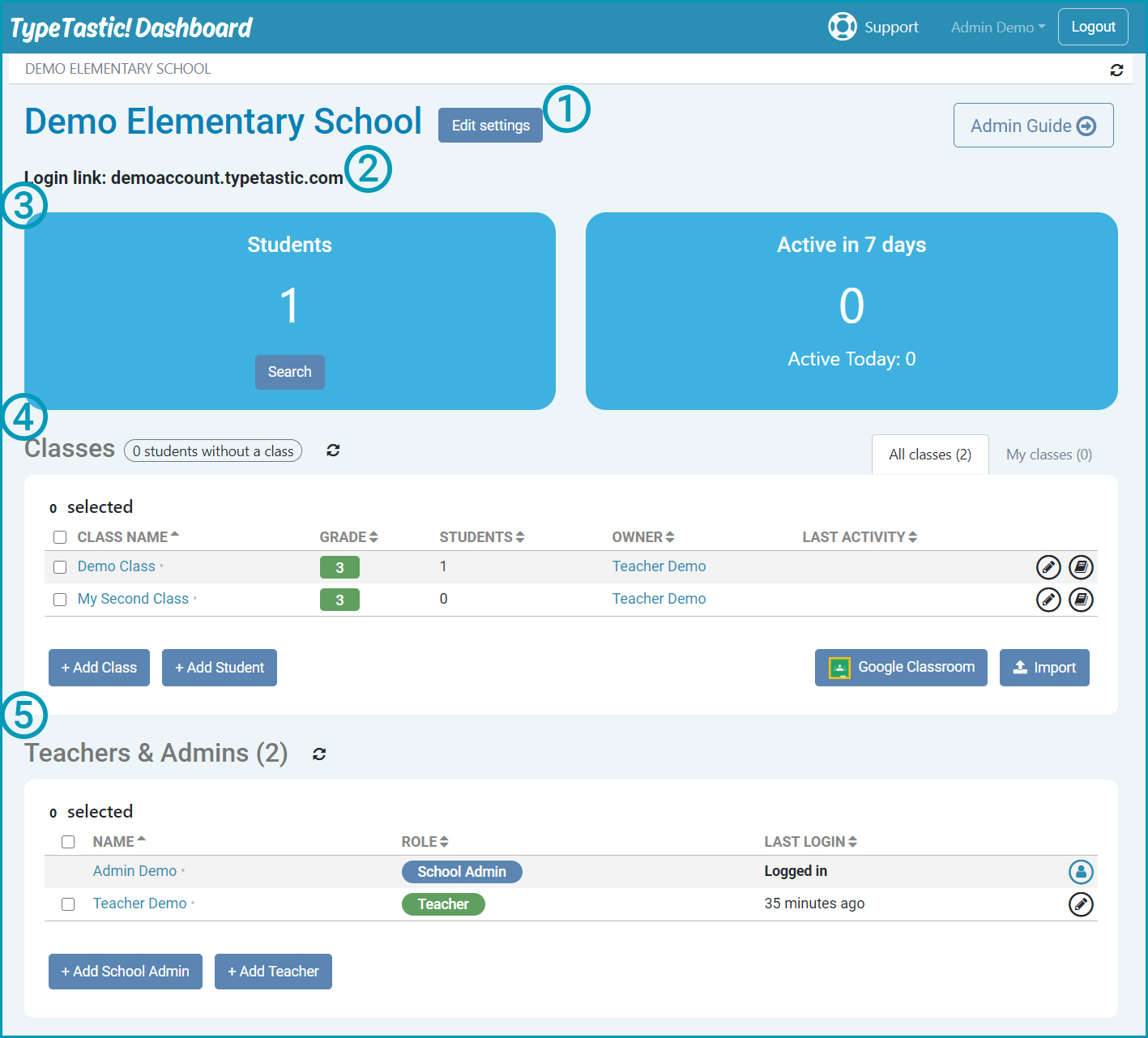
- School settings
- TypeTastic account login link
- Total number of students and activity during the last 7 days
- A list of all classes, the grade level, number of students in each class, the class owner, and the last activity timestamp. The school administrator can add more classes and students, import schools from Google Classroom, or import using CSV. Clicking on the class name will take you the teacher's class view (see below.)
- A list of all school administrators and teachers
Teacher
Assign any user to this level who needs only access to their classes and students:
- Allowed to see and manage only their own classes
- Allowed to view classes where they are co-teachers
- Access to view reports for their own classes and the classes where they are co-teachers
Multi-school teacher: If the same person is a teacher in more than one school, account administrators can upgrade them a multi-school administrator role. Note that multi-school role can't be given in CSV importing, but Clever SecureSync does give this role automatically based on the data that is shared via Clever. When user has a multi-school role, the page title (school name) is a dropdown selector.
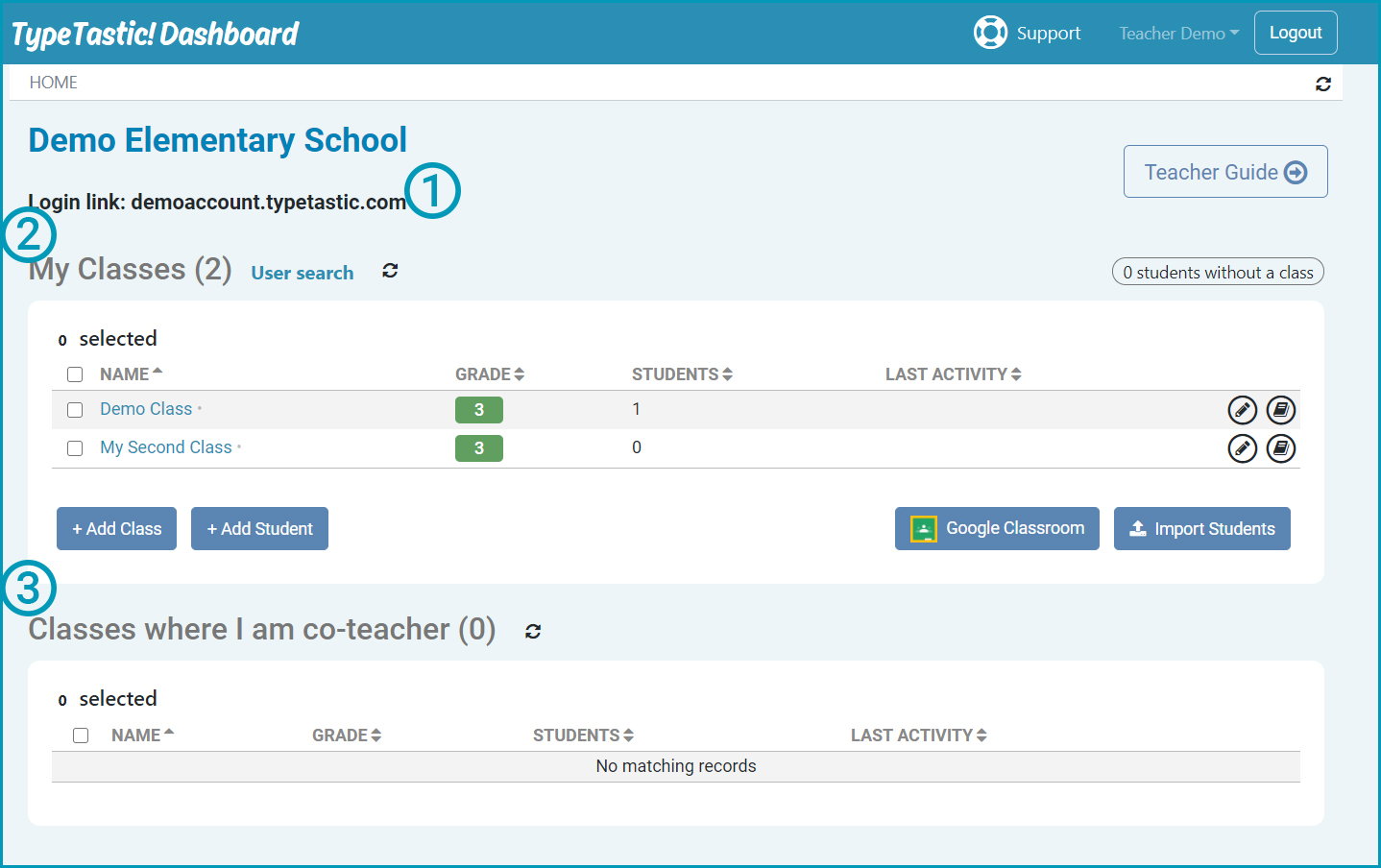
Teacher homepage view:
- TypeTastic account login link
- A list of all classes owned by a teacher. Buttons to add new classes, and add students. A teacher can also import classes from Google Classroom or import students via CSV file.
- A list of all classes where the teacher is a co-teacher
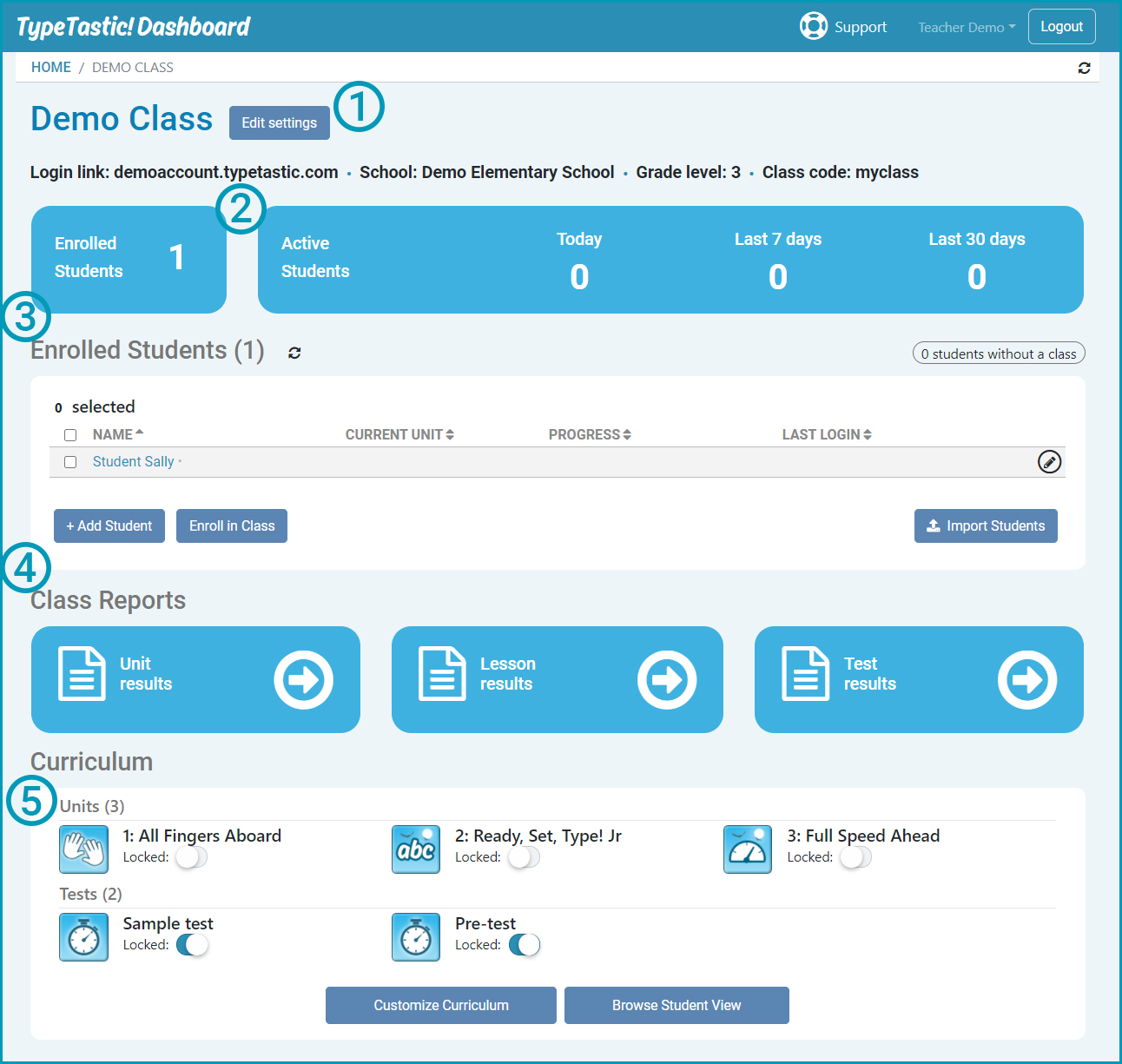
Class page:
- Class settings
- Number of students enrolled in the class, and activity
- A list of enrolled students, and buttons to add students, enroll new students to class and import students using a CSV file
- Class Reports
- A list of units enabled for the class. Add more units and edit settings by clicking on Customize Curriculum
Student
Students can only access the study material of the program and can view their personal information only. The majority of your users should be at this level.
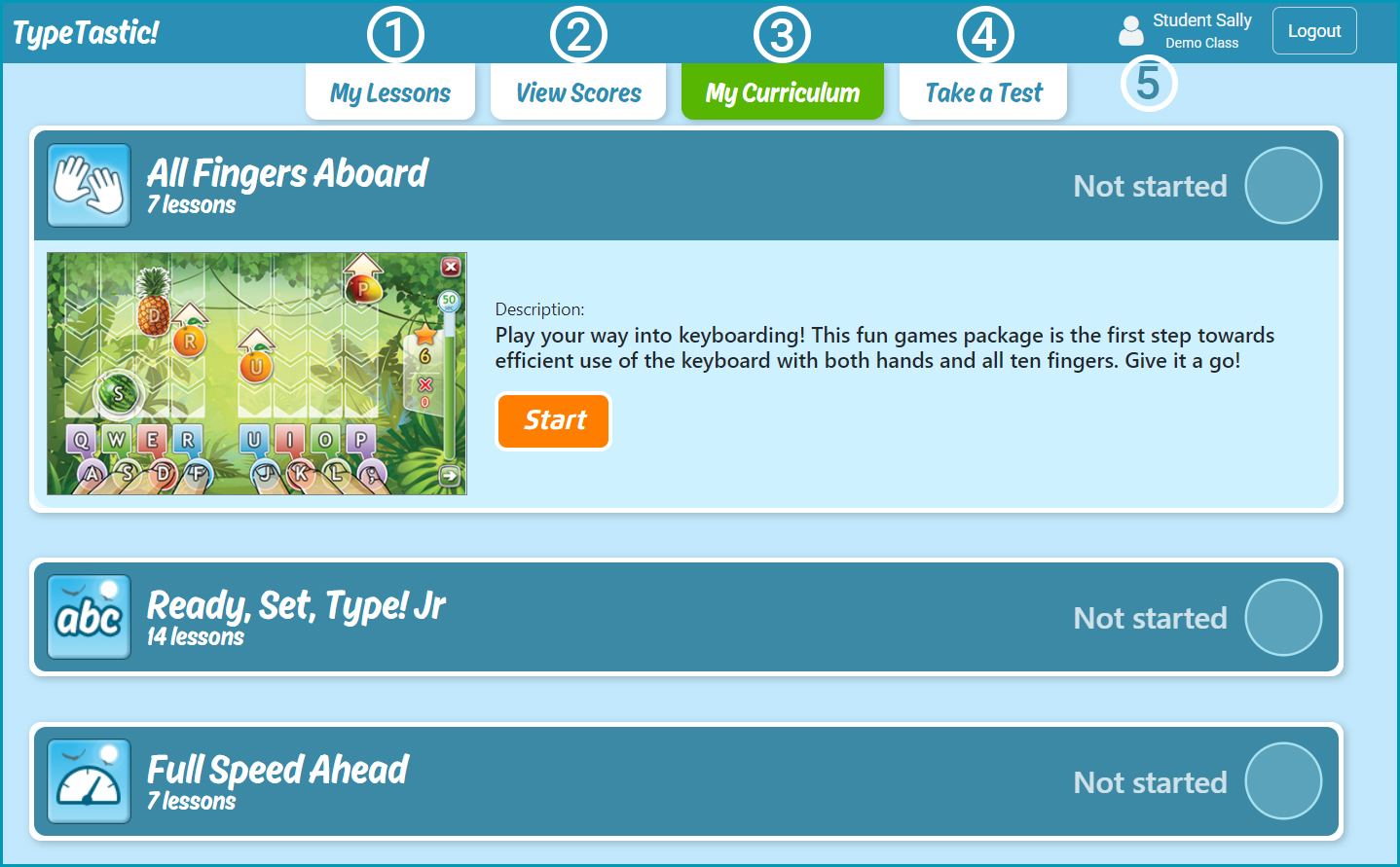
- My Lessons page lists the activities and shows student's progress within the lesson
- View Scores page shows the unit reports
- My Curriculum is the default page when students log in the first time. This page lists all available units. After finishing a unit, students go to My Curriculum page to select the next one.
- Additional typing tests are available on Take a Test page
- Student profile page. Students can enter a class code on this page to switch to another class